
Simple Vertical Timeline
Simple Vertical Timeline is my WordPress plugin to build animated vertical timelines inside posts and pages. It started in July 2016 as a small weekend experiment and it is still maintained today: it is free software, released under the GPLv2 license, distributed through the official WordPress.org plugin directory and developed in the open on GitHub.
What the plugin does has not changed in ten years: it turns a list of dated events into a clean, responsive vertical timeline. What has changed, completely, is how you build it.
Today: the block editor workflow
Since version 0.2.0 (August 2026) the plugin is a first-class citizen of the modern WordPress block editor. The old flow with TinyMCE buttons and hand-written shortcodes has been replaced by two native blocks:
- Open a post or a page and press the + (Block Inserter)
- Search for “Simple Vertical Timeline” and insert the container block
- Press + inside the timeline to add a “Timeline Event” block for every event
- Configure each event from the sidebar: title, date, icon, colors, custom CSS classes
- Write the event description directly in the block, with full rich content (paragraphs, images, lists)
Each event supports an icon chosen from the bundled Bootstrap Icons library or from a custom image URL, separate colors for the icon and the marker circle, and dedicated Title CSS class and Date CSS class fields so you can style single elements from your theme without touching the plugin. The blocks are dynamic, rendered on the server, so the frontend output is always consistent with what you see in the editor.
Backward compatibility
Nothing breaks. If you built timelines years ago with the classic editor, the legacy shortcodes keep working exactly as before: [svtimeline] … [/svtimeline] creates the timeline container, and [svt-event title="My Event" date="2026-01-01"] … [/svt-event] adds an event inside it.
Version 0.2.0 also adds the shortcode parameter title_class (an idea born from a community pull request) to assign custom CSS classes to the event title, matching the block editor fields.
The story of the plugin
The plugin was born in July 2016, when I needed a simple way to tell stories in chronological order on this site and the existing timeline plugins were either too heavy or too rigid. The first releases were built around shortcodes and two buttons injected into the TinyMCE editor:
- 0.0.1 – 0.0.2 (2016) — the baseline release and the “more” button on events, ready for WordPress 4.6.
- 0.0.6 – 0.0.7 (2016) — anchors for each event, a settings page with inline help, Linear Icons, and the Italian translation.
- 0.1.0 – 0.1.1 — a maintenance season: activation fixes, and above all two security fixes for XSS vulnerabilities in shortcode attributes and share URLs, with stricter URL validation and modern link hardening. Minimum requirement raised to PHP 7.4 and automated deployment to WordPress.org via GitHub Actions.
- 0.2.0 (2026) — the full rewrite for the block editor era, described above. The legacy TinyMCE buttons, the old Grunt/SCSS/CoffeeScript build chain and the non-functional social sharing feature were removed; the CSS pipeline is now deterministic via
clean-css-cli.
The direction is deliberate: less surface area, fewer dependencies, and alignment with where WordPress is going. Removing features, when they are unmaintained or obsolete, is part of maintaining software honestly.
Requirements and installation
- WordPress 5.0 or later (tested up to 6.7), PHP 7.4 or later
- From your dashboard: Plugins → Add New, search for “Simple Vertical Timeline”, install and activate
- Or download it from the official directory and upload it manually to
/wp-content/plugins/
Found a bug or have an idea? The development happens on GitHub: issues and pull requests are welcome. If the plugin is useful to you, a review on wordpress.org is the best way to say thanks.
From the archive: the 2016 quick start
For historical completeness, here is the original quick start as it appeared when the plugin was released, with the classic editor buttons. It no longer reflects the current workflow, but it shows where everything started.
I explain how to do the timeline with a simple example, the timeline of plugin! First to all we need to open a new Article or Page. In your “Visual editor” you can discover 2 new buttons:
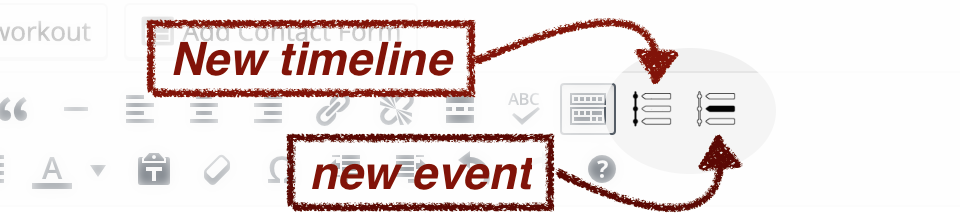
Step A
The button “Simple Vertical Timeline” allow you to create the main vertical line were all of your events will be placed… so select one place on your article and click on this button: two new shortcode will be added in the place selected. This is your first step! You have created the time line!
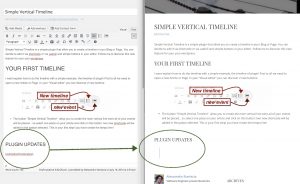
Step B
The button “Event for Simple Vertical Timeline” adds a new event in the time line. It’s very easy: move the pointer into the new element already created and click on it. One dialog will ask you to decide the title, just a quick starting note, the date and the color of node in the time line.
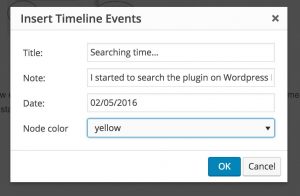
The result is the same of previous button: one shortcode will be added on the place of mouse and the new event with all the information will be showed on the page.
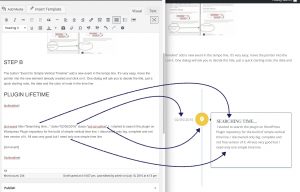
… is it all?
Yes, if you don’t want to customise the timeline, that’s all. But if you want you can try to customise the event as you want. Now all the short code are on place and it’s only up to you to add event or custom comment. Enjoy